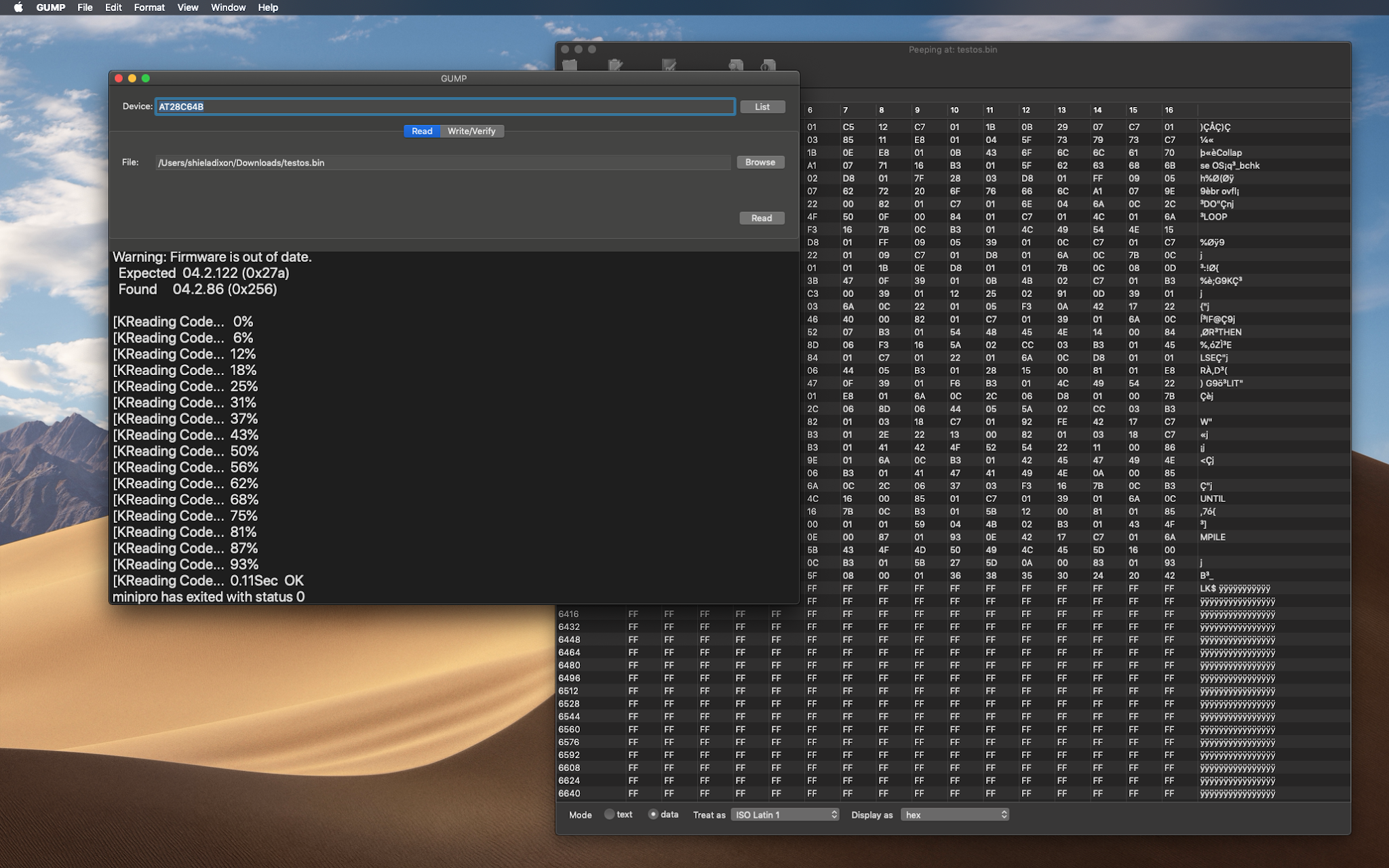
The passage of time is frightening. I see that it has been three years since I first posted about GUMP. I had expected a greater response.
In the mean time I've continued to use my GUI wrapper for minipro when burning ROM chips with my TL866 clone because that has been far friendlier than using the command line. It takes away the need to remember the switches or type the path to the binary.

I've used one or two other of my apps in conjunction with GUMP - Peep for 'hexeditor'-style viewing of the data read from a chip or checking the binary to be written. And a makeshift script for taking one file (or a blank file padded with FF or 00) and incorporating a smaller file at a given start address.
This has all been very clunky and disjointed. Plus there are some other features that I wanted. For example, a lookup for the supported device names and a list of 'favourites' to save having to keep a note of which device name I last used for the chips that I burn regularly.
A new version
So I've been doing the work to roll all of this together and add the new features. The result is a new version of GUMP. I'm still testing and developing, but it's now in a state where I can call it 'beta' and unleash it on anyone who wants to try it. [update 22 Jul 24] Now released as a free beta


Below that is the tabbed area. The 'Read' tab obviously allows you to read the chip and see the data in a 'hexeditor' style viewer. You can export this to a file if you want. The 'combine' checkbox allows you to use the data read from the chip as the starting point to build the output data.
Below that is a console area which relays the minipro output. This has minimal value but at least tells you whether the operation succeeded or failed, and sometimes why.

The 'Write/Verify' tab displays the data that you'll be writing to the chip. You can open a binary file, specify a start address, optionally combine this with the data read in from the chip and padd it to a certain size (although a switch allows you to suppress the error from minipro if it's shorter than the capacity of your chip). You can edit this byte by byte.
There are a few useful switches presented as checkboxes.

[update 22 Jul 24] Now released as a free beta