Showing posts with label webscraper. Show all posts

Monday, 16 March 2020

scraping email addresses with WebScraper

This has been a popular question from Webscraper users.

It has already been possible to use WebScraper to scrape email addresses with some caveats. a/ It required setting up, using your favourite regular expression for matching email addresses (these are easy to find online if you're not a regex demon) and b/ it'll only work if the email addresses appear unobfuscated in the source or visible text. It has long been popular to use some method of hiding email addresses from bots.

To help with this particular task, you can now set up WebScraper more easily (as from version 4.11.0).  'Email Addresses' now appears in the drop-down buttons for the simple and complex setups.

Here's the simple setup. It couldn't be easier; 'Email Addresses' appears in the second drop-down if you choose 'Content' in the first. Skip to the Post-processing tab  >>

Output file columns

For the complex setup, by default you get the URL and Title columns by default. You may like to keep those so that you can see which page each email address appears on.  Or delete them if you simply want a list of email addresses. Then add a column. As with the simple setup, choose Content and then Email Addresses.

Results tab

At this point (After running the scan or a test) each page is presented on a row of this table. If there are multiple email addresses on a page, they'll be  listed in a single cell separated by a pipe. We'll fix that later. There may also be big gaps where pages don't contain an email address. That's also something we can fix.

During the scan, at the point where email addresses are scraped from a page, the results are uniqued. So if the same address appears multiple times on the same page (which is likely if the address appears as a link - it may be in the link and in the visible text) then it'll only appear once in that row on the Results tab.

Post-processing tab

Here's where we can tidy up the output. The first checkbox will split multiple results onto separate rows. The third checkbox will skip rows where there are no results. The drop-down button will contain a list of your output columns, choose your email address column. As the label says, these things will be done when you export your output to csv.

Preferences

The default expression used for this task will match strings like xxxx@xxxx.xxx  I found that this can match certain images that have an @ symbol in their filename. If you wish to improve the regular expression, then simply change it in this field in Preferences.

Export

Here's my output for this example (I chose not to include the url and title columns). Note that the same address appears a lot. At time of writing WebScraper doesn't have a 'unique' option on the post-processing tab but that's under consideration. Also note that caveat b at the top of this article still applies.


Tuesday, 4 February 2020

How to extract a table from html and save to csv (web to spreadsheet)

WebScraper users have sometimes asked about extracting data contained in tables on multiple pages.

Tables on multiple pages


That's fine if the table is for layout, or if there's just one bit of info that you want to grab from each, identifiable using a class or id.

But to take the whole table raises some questions - how do you map the web table to your output file? It may work if you can identify a similar table on all pages (matching columns) so that each one can be appended and match up, and if the first row is always headings (or marked up as th) and can be ignored, except for maybe the first one.

It's a scenario with a lot of ifs and buts, which means that it may be one of those problems that's best dealt on a case-by-case basis rather than trying to make a configurable app handle it. (if you do have this requirement, please do get in touch.)

Table from a single page


But this week someone asked about extracting a table from a single web page. It's pretty simple to copy the source from the web page, paste it into an online tool, or copy the table from the web page and paste into a spreadsheet app like Numbers or Excel and that was my answer.

But this set me thinking about the job of parsing html and extracting the table data ready for saving in whatever format.

At the core of this is a cocoa class for parsing the html and extracting the table (or tables if there are more than one on the page). With a view to possibly building this into WebScraper to allow it to do the 'tables on multiple pages' task, or for having this ready, should the need arise to use this in a custom app for a one-off job, I've now written that parser and built a small free app around it.

That app is the imaginatively-titled HTMLTabletoCSV which is now available here.


Wednesday, 11 December 2019

Using Webscraper to extract data from paginated search result pages, another real case study


First we need to give WebScraper our starting URL. This may be as simple as performing the search in a browser and grabbing the url of the first page of results. In this case things are even easier, because the landing page on the website has the first pageful of results. So that's our starting URL.

After that, we want WebScraper to 'crawl' the pagination (ie next/previous, or page 1, 2 3 etc) and ignore any of the other links to other parts of the site. In this case, the pages have a nice clean querystring which only includes the page number:
So as far as the crawl goes, we can tell WebScraper to ignore any url which doesn't contain "?page=". We're in the Advanced section of the Scan tab for these next few steps.
In some cases, the pages we want the data from are a further click from the search results pages. Let's call those 'detail pages'. It's possible to tell WS to stick to the scan rule(s) we've just set up, but to also visit and only scrape data from detail pages. This is done by setting up rules on the 'Output filter' tab. We don't need to do that here but this article goes into more detail about that.

In our case we're still going to use the output filter to make sure that we only scrape data from pages that we're interested in. We're starting within the 'directory' /names. So the first part, "url does contain /names" shouldn't be necessary*. There's a silly quirk here which is that the first page won't stick at ?page=1, it redirects back to /names. Therefore we can't use /names?page= here if we're going to capture the data from that first page. I notice that there are detail pages in the form /names/somename  so in order to filter those from the results, I've added a second rule here, "URL does not contain names/"
If we're lucky, the site will be responsive and won't clam up on us after a limited number of responses, and our activities will go unnoticed. However, it's always a good policy to put in a little throttling (the lower the number, the longer the scan will take). 
Don't worry about the number of threads too much here, the above setting takes that into account and it's beneficial to use multiple threads, even when throttling right down).

Finally, we set up our columns. If you don't see the Output file columns tab, click Complex setup (below the Go button). By default, you'll see two columns set up already, for page URL and page title. Page URL is often useful later, page title not so much. You can delete one or both of those if you don't want them in the output file.

In this example, we want to extract the price, which appears (if we 'view source') as
data-business-name-price="2795". This is very easy to turn into a regex, we just replace the part we want to collect with (.+?)
I had a little confusion over whether this appeared on the page with single-quotes or double-quotes, and so to cover the possibility that the site isn't consistent with these, I also replaced the quotes in the expression with ["'] (square brackets containing a double and single quote).

(Setting up the other columns for this job was virtually identical to the above step).

If necessary, WebScraper has a Helper tool to help us create and test that Regex. (View>Helper for classes/Regex.)

The Test button on the Output columns tab will run a limited scan, which should take a few seconds and put a few rows in the Results tab. We can confirm that the data we want is being collected.

Note that, by default, Webscraper outputs to csv and puts the data from one page on one row. That's fine if we want one piece of data from each page (or extract a number of different pieces into different columns) but here we have multiple results on each page.

Choosing json as an output format gets around this because the format allows for arrays within arrays. If we need csv as the output then WS will initially put the data in a single cell, separated with a separator character (pipe by default) and then has an option on the Post-process tab to split those rows and put each item of data on a separate row. This is done when exporting, so won't be previewed on the Results tab.

That's the setup. Go runs the scan, and Export exports the data.
*remembering to answer 'Directory' when asked whether the starting url is a page or directory


Sunday, 8 December 2019

Manual for Webscraper for Mac

Webscraper is becoming one of our more popular apps and it's growing in terms of its features and options too.
When I use it to do a job for myself or for someone else, I am having trouble myself remembering the rules for certain features.

So I've written a manual in Plain English which should help everyone whether they are a first-time user or just need to check a detail.

https://peacockmedia.software/mac/webscraper/manual.html

There are links on the app's home page and support page. I'll put a link under the app's Help menu too.


Monday, 1 April 2019

Scraping links from Google search results

This tutorial assumes that you want to crawl the first few search results pages and collect the links from the results.

Remember that:

1. The search results that you get from WebScraper will be slightly different from the ones that you see in your browser. Google's search results are personalised. If someone else in a different place does the same search, they will get a different set of results from you, based on their browsing history. WebScraper doesn't use cookies and so it doesn't have a personality or browsing history.

2. Google limits the number of pages that you can see within a certain time. If you use this once with these settings, that'll be fine, but if you use it several times, it'll eventually fail. I believe Google allows each person to make 100 requests per hour before showing a CAPTCHA but I'm not sure about that number.  If you run this example a few times, it may stop working. If this happens, press the 'log in' button at the bottom of the scan tab. You should see the CAPTCHA. If you complete it you should be able to continue.  If this is a problem, adapt this tutorial for another search engine which doesn't have this limit.

We're using WebScraper for Mac which has some limits in the unregistered version.

1. The crawl
Your starting url looks like this: http://www.google.com/search?q=ten+best+cakes.   Set Crawl maximum to '1 click from home' because in this example we can reach the first ten pages of search results within one click of the starting url (see Pagination below).
One important point not ringed in the screenshot. Choose 'IE11 / Windows' for your user-agent string. Google serves different code depending on the browser. The regex below was written with the user-agent set to IE11/Windows.

2. Pagination 
We want to follow the links at the bottom of the page for the next page of search results, and nothing else. (These settings are about the crawl, not about collecting data). So we set up a rule that says "ignore urls that don't contain &start= " (see above)

3. Output file
Add a column, choose Regex. The expression is <div class="r"><a href="(.*?)"
You can bin the other two default columns if you want to. (I didn't bother and you'll see them in the final results at the bottom of this article.)

4. Separating our results
WebScraper is designed to crawl a site and extract a piece of data from each page. Each new row in the output file represents a page from the crawl. Here we want to collect multiple data from each page. So the scraped urls from each search results page will appear in a single cell (separated by a special character.) So we want to ask WebScraper to split these onto separate rows, which it does when it exports.
5. Run
Press the >Go button, and you'll see the results fill up in the Results tab. As mentioned, each row is one page of the crawl, you'll need to export to split the results onto separate rows.
 Here's the output in Finder/quicklook. The csv should open in your favourite spreadsheet app.

Friday, 18 January 2019

scraping Yelp for phone numbers of all plumbers in California (or whatever in wherever)

I've written similar tutorials to this one before, but I've made the screenshots and written the tutorial this morning to help someone and wanted to preserve the information here.

We're using the Webscraper app. The procedure below will work while you're in demo mode, but the number of results will be limited.

We enter our starting url. Perform your search on Yelp and then click through to the next page of results. Note how the url changes as you click through. In this case it goes:
https://www.yelp.com/search?find_desc=Plumbers&find_loc=California&ns=1&start=0
https://www.yelp.com/search?find_desc=Plumbers&find_loc=California&ns=1&start=20
https://www.yelp.com/search?find_desc=Plumbers&find_loc=California&ns=1&start=40
etc.

(I added in &start=0 on the first one, that part isn't there when you first go to the results, but this avoids some duplication due to the default page and &start=0 being the same page).

So our starting url should be:
https://www.yelp.com/search?find_desc=Plumbers&find_loc=California&ns=1&start=0

In order to crawl through the results pages, we limit our crawl to urls that match the pattern we've observed above. We can do that by asking the crawl to ignore any urls that don't contain
?find_desc=Plumbers&find_loc=California&ns=1&start=

In this case we're going to additionally click the links in the results, so that we can scrape the information we want from the businesses' pages. This is done on the 'Output filter' tab. Check 'Filter output' and enter these rules:
URL contains /biz/
and URL contains ?osq=Plumbers
(The phone numbers and business names are right there on the results pages, we could grab them from there, but for this exercise we're clicking through to the business page to grab the info from there. It has advantages.)

Finally we need to set up the columns in our output file and specify what information we want to grab. On the business page, the name of the business is in the h1 tags, so we can simply select that. The phone number is helpfully in a div called 'biz-phone' so that's easy to set up too.

Then we run by pressing the Go button. In an unlicensed copy of the WebScraper app, you should see 10 results. Once licensed, the app should crawl through the pagination and collect all (in this case) 200+ results.

Limitations

I was able to get all of the results (matching those available while using the browser) for this particular category. For some others I noticed that Yelp didn't seem to want to serve more than 25 pages of results, even when the page said that there were more pages. Skipping straight to the 25th page and then clicking 'Next' resulted in a page with hints about searching.

This isn't the same as becoming blacklisted, which will happen when you have made too many requests in a given time. This is obvious because you then can't access Yelp in your browser without changing your IP address. One measure to avoid this problem is to use ProxyCrawl which is a service that you can use by getting yourself an account (free initially), switch on 'Use ProxyCrawl' in WebScraper and enter your token in Preferences.

Monday, 5 November 2018

Webscraper and pagination with case studies

If you're searching for help using WebScraper for MacOS then the chances are that the job involves pagination, because this situation provides some challenges.

Right off, I'll say that there is another approach to extracting data in cases like this from certain sites. It uses a different tool which we haven't made publicly available, but contact me if you're interested.

Here's the problem:  the search results are paginated (page 1, 2, 3 etc). In this case, all of the information we want is right there on the search results pages, but it may be that you want Webscraper to follow the pagination, and then follow the links through to the actual product pages (let's call them 'detail pages') and extract the data from those.


1. We obviously want to start WebScraper at the first page of search results. It's easy to grab that url and give it to WebScraper:

2. We aren't interested in Webscraper following any links other than those pagination links. (we'll come to detail pages later). In this case it's easy to 'whitelist' those pagination pages.

3. The pagination may stop after a certain number of pages. But in this case it seems to go on for ever. One way to limit our crawl is to use these options:

A more precise way to stop the crawl at a certain point in the pagination is to set up more rules:

4. At this point, running the scan proves that WebScraper will follow the search results pages we're interested in, and stop when we want.

5. In this particular case, all of the information we want is right there in the search results lists. So we can use WebScraper's class and regex helpers to set up the output columns.


Detail pages

In the example above, all of the information we want is there on the search result pages, so the job is done. But what if we have to follow the 'read more' link and then scrape the information from the detail page?

There are a few approaches to this, and a different approach that I alluded to at the start. The best way will depend on the site.

1. Two-step process

This method involves using the technique above to crawl the pagination, and collect *only* the urls of the detail pages  in a single column of the output file.  Then as a separate project, use that list as your starting point (File > Open list of links)  so that WebScraper scrapes data from the pages whose those urls, ie your detail pages. This is a good clean method, but it does involve a little more work to run it all. With the two projects set up properly and saved as project files,  you can open the first project, run it, export the results, open the second project, run it and then export your final results.

2. Set up the rules necessary to crawl through to the detail pages and scrape the information from only those.

Here are the rules for a recent successful project

"?cat=259&sort=price_asc&set_page_size=12&page=" is the rule which allows us to crawl the paginated pages.
"?productid="  is the one which identifies our product page.

Notice here that the two rules appear to contradict each other. But when using 'Only follow', the two rules are 'OR'd. The 'ignore' rules that we used in the first case study are 'AND'ed, which results in no results if you have more than one 'ignore urls that don't contain'.

So here we're following pages which are search results pages, or product detail pages.  

The third rule is necessary because the product page (in this case) contains links to 'related products' which aren't part of our search but do fit our other rules. We need to ignore those, otherwise we'll end up crawling all products on the entire site.

That would probably work fine, but we'd get irrelevant lines in our output because WebScraper will try to scrape data from the search results pages as well as the detail pages. This is where the Output filter comes into play.

The important one is "scrape data from pages where... URL does contain ?productid".  The other rule probably isn't needed (because we're ignoring those pages during the crawl) but I added it to be doubly sure that we don't get any data from 'related product' pages.


Whichever of those methods you try, the next thing is to set up the columns in the output file (ie what data you want to scrape.)  That's beyond the scope of this article, and the 'helpers' are much improved in recent WebScraper versions. There's a separate article about using regex to extract the information you want here.

Saturday, 28 April 2018

Case study - using WebScraper to compile a list of information in a useful format from a website

Here's a frustrating problem that lent itself really well to using WebScraper for Mac.

This is the exhibitor list for an event I was to attend. It's a very long list, and unless you recognise the name, the only way to see a little more information about each exhibitor is to click through and then back again.


I wanted to cast my eye down a list of names and brief summaries, to see who I might be interested in visiting. Obviously this information will be in the printed programme, but I don't get that until the day.

(NB this walkthrough uses version 4.2.0 which is now available. The column setup table is more intuitive in 4.2 and the ability to extract h1s by class is a new feature in 4.2)

1. Setting up the scan. It's as easy as entering the starting url (the url of the exhibitor list). There's also this very useful scan setting (under Scan > Advanced) to say that I only want to travel one click away from my starting url (there's no pagination here, it's just one long list).

There's also a "new and improved" filter for the output. Think of this as 'select where' or just 'only include data in the output table if this is true'. In this case it's easy, we only want data in the output if the page is an exhibitor detail page. Helpfully, those all contain "/exhibitors-list/exhibitor-details/" in the url, so we can set up this rule:
2. Setting up the columns for the output table. The Helper tool shows me that the name of each business is on the information page within a heading that has a class. That's handy, because I can simply choose this using the helper tool and add a column which selects that class. 

3. The summary is a little more tricky, because there's no class or id to identify it. But helpfully it is always the first paragraph (<p>) after the first heading. So we can use the regex helper to write a regular expression to extract this.

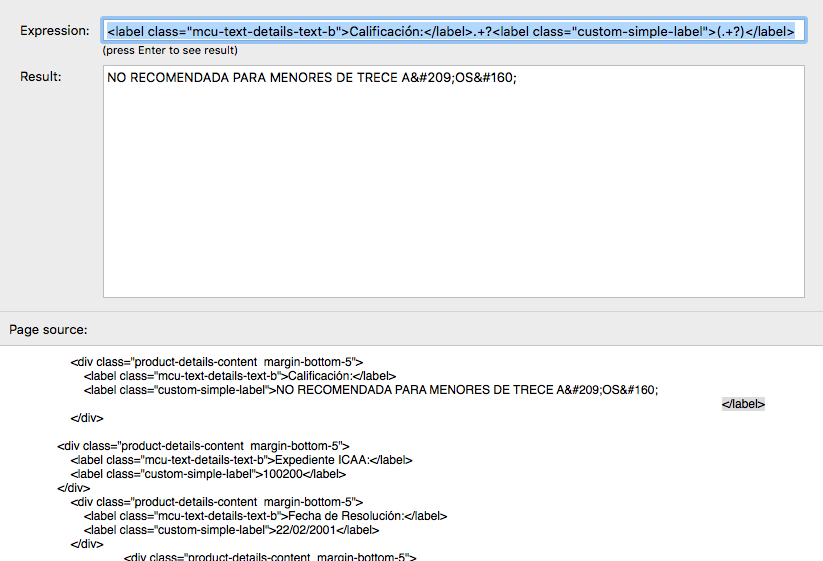
The easy way to write the expression is simply to copy a chunk of the html source containing the info you want, plus anything that identifies the beginning and end of it, and then replace the part you want with (.+?) (which means 'collect any number of any characters'). I've also replaced the heading itself with ".+?" (the same, but don't collect) because that will obviously change on each page. That is all more simple than I've made it sound there. I'm no regex expert (regexpert?) - you may well know more than me on the subject and there may be better expressions to achieve this particular job, but this works, as we can see by hitting enter to see the result.

Here's what the column setup looks like now:

(Note that I edited the column headings by double-clicking the heading itself. That heading is mirrored in the actual exported output file, and acts as a field name in both csv and json)

 4. Press Go, watch the progress bar and then enjoy the results. Export to csv or other format if you like.


Friday, 27 April 2018

HTMLtoMD and Webscraper - a comparison converting & archiving a site as MarkDown

I noticed a few people visiting the website as a result of searching for "webpage to markdown" and similar.

Our app HTMLtoMD was designed to do exactly that, and is free. But it was experimental and hasn't received very much development in a long time.

It still does its job, but our app Webscraper can also do that job, with many more options, and is a much more active product, it's selling and is under regular development now.

I thought it was worth writing a quick article to compare the output and features of the two apps.

First HTMLtoMD. It's designed for one job and so is simple to use. Just type or paste the address of your page or homepage into the address bar and press Go. If you choose the single page option, you'll immediately see the page as markdown, and can copy that markdown to paste somewhere else.
If you don't choose the single page option, the app will scan your site, and then offer to save the pages as markdown.

Here's the big difference with WebScraper. HTMLtoMD will save each page separately as a separate markdown file:

So here's how to do the same thing with Webscraper. It has many more options (which I won't go into here.) The advanced ones tend not to be visible until you need them. So here's WebScraper when it opens.
For this task, simply leave everything at defaults, enter your website name and make sure you choose "collect content as markdown" from the 'simple setup' as shown above. Then press Go.

For this first example I left the output file format set to csv.  When the scan has run, the Results table shows how the csv file will look.  In this example we have three field names;  url, title, content - note that the 'complex setup' allows you to choose more fields, for example you might like to collect the meta description too.
You may have noticed in one of the screenshots above that the options for output include csv, json and txt. Unlike HTMLtoMD, Webscraper always saves everything as a single file. The csv output is shown above. The text file is also worth looking at here. Although it is a single file, it is structured.   I've highlighted the field headings in the screenshot below. As I mentioned above, you can set things up so that more information (eg meta description) is captured.


[Update]

It occurred to me after writing the article above, that collecting images is a closely-related task. WebScraper can download and save all images while performing its scan. Here are the options, you'll need to switch to the 'complex setup' to access these options:


If you're unsure about any of this, or if you can't immediately see how to do what you need to do, please do get in touch. It's really useful to know what jobs people are using our software for (confidential of course). Even if it's not possible, we may have suggestions. We have other apps that can do similar but different things, and have even written custom apps for specific jobs.

Thursday, 19 April 2018

Option to download images in WebScraper

WebScraper for Mac now has the option to download and save images in a folder, as well as, or instead of, extracting data from the pages.


WebScraper crawls a whole website and it can extract information based on a class or id, or dump the content as html, plain text or markdown.

By just checking that box and choosing a download location, it can also dump all images to a local folder. That includes those found linked (the target of a regular hyperlink), those in a <img src , and those found in an srcset.

If you only want particular images, you can select only those which match a partial url or regex.

This functionality is in version 4.1.0 which is available now.

Monday, 16 April 2018

Webscraper version 4 released

Webscraper from PeacockMedia makes it quick and easy to extract data from a website.

It has some 'simple setup' options if you simply want to archive content or collect certain meta data. For more complex tasks you can add columns to your output file which extract data based on certain class or id, or even by regular expression (regex). (A tutorial is here).

version 4 is now released which has been updated to use the Integrity v8 engine. That makes some efficiency improvements, and allows better control if you need to limit the requests that WS makes to your server:

The app has a very modest price tag of $10 and you can use it for free to test whether it works for you.

Saturday, 14 April 2018

Scraping details from a web database using WebScraper

In the example below, you can see that the important data are not identified by a *unique* class or id.  This is a common scenario, so I thought I'd write this post to explain how to crawl such a site and collect this information. This tutorial uses WebScraper from PeacockMedia.
1. As there's no unique class or id identifying the data we want*  we must use a reguar expression (regex).

Toggle to 'Complex setup' if you're not set to that already.

Add a column to the output file and choose Regular expression. Then use the helper button (unless you're a regex aficionado and have already written the expression). You can search the source for the part you want and test your expression as you write it. (see below). Actually writing the expression is outside the scope of this article, but one important thing to say is that if there is no capturing in your expression (round brackets) then the result of the whole expression will be included in your output. If there is capturing (as in my example below) then only the captured data is output.

 2. paste the expression into the 'add column' dialog and OK.   Here's what the setup looks like after adding that first column.
 3. This is a quick test, I've limited the scan to 100 links simply to test it. You can see this first field correctly going into the column. At this point I've also added another regex column for the film title, because the page title is useless here (it's the same for every detail page)
4. Add further columns for the remaining information as per step 1.

5. If you limited the links while you were testing as I did, remember to change that back to a suitably high limit (the default is 200,000 I believe) and set your starting url to the home page of the site or something suitable for crawling all of the pages you're interested in.


As always, please contact support if you need more help or would like to commission us to do the job.


*  as I write this, webscraper checks for class, id and itemprop  inside <div>, <span>, <dd> and <p> tags, this is likely to be expanded in future.