Showing posts with label website analysis. Show all posts

Friday, 21 October 2022

Structured Data in Scrutiny Scans

Back in April we launched version 12 of Scrutiny (skipping 11). 

Since then the topic of structured data has been raised by users. 

Scrutiny has long collected Twitter and open graph meta data, and has displayed those fields in its SEO > Meta Data table. But not structured data provided via json-ld. 

It's easy to collect this but not so easy to display it en masse as it has a 'tree' structure.

Here are some first steps. I'm open to discussion on where to go from here. The following is all possible with the current version of Scrutiny, 12.5.0

The json-ld is collected from each page and parsed. Perhaps the most important pieces of information are the @types. Like headings there may be multiple, and at different levels, so like headings they can be displayed in the table, in a single column using a separator and in the order that they appear.

The column can be switched on using the Columns selector above the SEO > Meta Data table
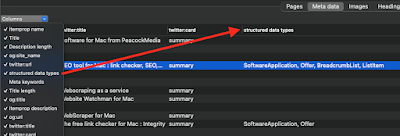

That allows you to see at a glance what pages have the structured data and what type(s) are used.

For more detail on a particular page, a double click in this table opens the Page Inspector:
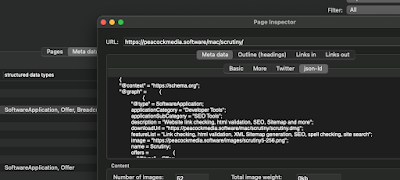

This is the Meta data > json-ld tab of the Page Inspector. Note that we're not seeing the original json string from the page. It has been parsed and formatted. It's the way that a machine would read it, and if Scrutiny can't read the json, then there will be an error message here. (You can see that I've used @graph here in order to display both the software application and the breadcrumb list  within the same chunk of json-ld. If there are multiple chunks of json-ld on the page then they'll be amalgamated here.)

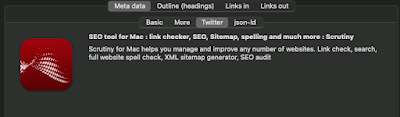
Also in the same inspector is a Twitter Card viewer. This will display information from the Twitter meta data if present, and fall back on Open Graph (og:) fields, as Twitter does. This doesn't look exactly the way that Twitter would display the information - Twitter also draws on info from the Twitter account referenced.

Monday, 31 January 2022

Locate : an overlooked feature in Integrity and Scrutiny

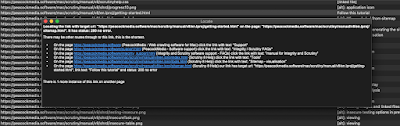
 The Locate feature is an overlooked feature in Integrity and Scrutiny. It answers the common question, "Integrity is reporting a broken link on a page but I don't know where to find that page" or "that page shouldn't exist any more".

It tells you, as a user, how to find the link in question and the page it's on. These hyperlinks are clickable.


There may be more than one route to click through from the home page (or your starting url) to the link in question, but this tool should show the shortest.

It's important to distinguish here between link urls, and a single instance of a link.

In this example, I've selected a link url which has tested as good. There may be links with that target url on multiple pages (or multiple links on the same page). For example a link to the home page probably exists on every page of a site, maybe in more than one place on a page.


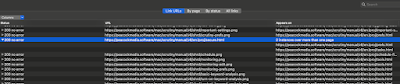
A context menu* triggered by a right-click or control-click on that url row will only show options that are relevant to that url, or the page at that url. In order to access the Locate feature, you need to right-click one of the link instances, which are revealed when you expand the row.

The By page and By status views both show link instances when the page / status is expanded, so Locate can be accessed in those views after expanding a page/status. All Links is a flat table showing link instances, so Locate will appear when you right-click any row. In all of these cases it's important to only select a single row, Locate can't work on multiple selected items.

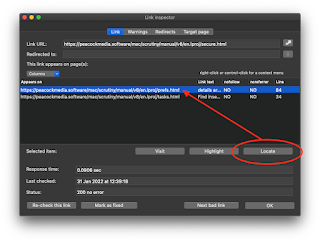
Similarly, if you open the link inspector, it concerns a link url and the status of that url when tested, and it has a table listing the instances or occurrences of that url in links. Before using the Locate button (or context menu in that table) it's important to select one of the instances in the table.


Recent versions of Integrity and Scrutiny may have Locate in these context menus but it may not appear to do anything. This is fixed in Integrity and Scrutiny v10.4.12+


Thursday, 9 September 2021

429 status codes when crawling sites


I've had a few conversations with friends about Maplin recently. I have very good memories of the Maplin catalogue way back when they sold electronic components. The catalogue grew bigger each year and featured great spaceship artwork on the cover. They opened high street shops, started selling toys and then closed their shops.

The challenge with this site is that it would finish early after receiving a bunch of 429 status codes. 

This code means "too many requests". So the server would respond normally for a while before deciding not to co-operate any more. When this happens, it's usually solved by throttling the crawler; limiting its number of threads, or imposing a limit on the number of requests per minute.

With Maplin I went back to a single thread and just 50 requests per minute (less than one per second) and even at this pedestrian speed, the behaviour was the same. So I guess that it's set to allow a certain number of requests from a given IP address within a certain time. It didn't block my IP and so after a break would respond again. 

I managed to get through the site using a technique which is a bit of a hack but works. It's the "Pause and Continue" technique. When you start to receive errors, pausing and waiting for a while allows us to continue and make a fresh start with the server. A useful feature of Integrity and Scrutiny's engine is that on Continue, it doesn't just continue from where it left off. It will start at the top of its list, ignore the good statuses but re-check any bad links. This leads to the fun spectacle of the number of bad links counting backwards!


On finish, there seems to be around 50 genuinely broken links. Easily fixed once found.


Saturday, 4 September 2021

Crawling big-name websites. Some thoughts.

Over the last couple of weeks I've been crawling the websites of some less-popular* big names. 

I enjoy investigating websites, it gives me some interesting things to think about and comment on, and it allows me to test my software 'in the wild'.

Already I'm feeling disappointed with the general quality of these sites, and I'm noticing some common issues. 


The most common by far is the "image without alt text" warning. As someone with a history in website accessibility, this is disappointing, particularly as it's the easiest accessibility improvement and SEO opportunity. Above is a section of the warnings from the RBS site. Every page has a list of images without alt text, and I see this regularly on sites that I'm crawling.

Next are the issues which may be the result of blindly plugging plugins and modules into a CMS. Last week I saw the issue of multiple <head> tags, some of them nested in the Shell UK website. This showed up a small issue with Scrutiny (fixed in 10.4.2 and above). 

One of the sites I've crawled this week, Ryanair, showed a different problem which may also be the result of plugins that don't play nicely together. 

The content page has two meta descriptions. Only one of them is likely to be displayed on Google's search results page. Don't leave that to chance.

Before getting to that point, the first black mark to Ryanair is that the site can't be viewed without javascript rendering. It's all very well for js to make pretty effects on your page but if nothing is visible on the page without js doing its stuff in the browser, then that is bad accessibility and arguably could hinder search engines from being able to index the pages properly**

This is what the page looks like in a browser without JS enabled, or on any other user agent that doesn't do rendering. This is what Integrity and Scrutiny would see by default. To crawl this site we need to enable the 'run js' feature. 

This aspect of the site helps to mask the 'double-description' problem from a human - if you 'view source' in a browser (depending on the browser) you may not even see the second meta description because you may see the 'pre-rendered' page code.

 Scrutiny reported the problem and I had to look at the 'post-rendered' source to see the second one:

I hope you enjoy reading about this kind of thing. I enjoy doing the investigation. So far no-one from any of the companies I've mentioned on blog pages and tweets have made contact, but I'd welcome that. 


*less-popular with me.

** It used to be the case that no search engine would be able to index such a page. Now Google (but not all search engines) does render pages. To some extent. 

Friday, 5 February 2021

HTML validation of an entire website

Version 10 of Scrutiny and Integrity Pro contain  built-in html validation. This means that they can make some important checks on every page as they crawl. 

It's enabled by default but can be switched off (with very large sites it can be useful to switch off features that you don't need at the time, for reasons of speed or resources).


Simply scan the site as normal. When it's finished, the task selection screen contains "Warnings: HTML validation and other warnings >"
(NB Integrity Pro differs here, it doesn't have the task selection screen above, but a 'Warnings' tab in its main tabbed view.)

Warnings can be filtered, sorted and exported. If there's a type of warning that you don't need to deal with right now, you can "hide warnings like this" temporarily or until the next scan. (Right-click or ctrl-click for context menus.)


The description of the warning contains a line number and/or url where appropriate / possible.

In addition, links are coloured orange (by default) in the link-check results tables if there are warnings. Traditionally, orange meant a redirection, and it still does, but other warnings now colour that link orange. A double-click opens the link inspector and the warnings tab shows any reason(s) for the orange colouring.  Note that while the link inspector is concerned with the link url, many of these warnings will apply to the target page of the link url.


The full list of potential warnings (to date) is at the end of this post. We're unsure whether this list will ever be as comprehensive as the w3c validator, and unsure whether it should be.  At present it concentrates on many common and important mistakes; the ones that have consequences.

Should you wish to run a single page through the w3c validator,  that option still exists in the context menu of the SEO table (the one table that lists all of your pages.  The sitemap table excludes certain pages for good reasons.)


Full list of possible html validation warnings (so far):

unclosed div, p, form
extra closing div, p, form
extra closing a
p within h1/h2...h6
h1/h2...h6 within p
more than one doctype / body
no doctype / html / body /
no closing body / html
unterminated / nested link tag 
script tag left unclosed
comment left unclosed
end p with open span
block level element XXX cannot be within inline element XXX  (currently limited to div/footer/header/nav/p  within a/script/span  but will be expanded to recognise more elements )
'=' within unquoted src or href url
link url has mismatched or missing end quotes
image without alt text. (This is an accessibility, html validation and SEO issue. The full list of images without alt text can also be found in Scrutiny's SEO results.)
more than one canonical
more than one opening html tag
Badly nested <form> and <div>
Form element can't be nested
hanging comma at end of src list (w3 validator reports this as "empty image-candidate string")
more than one meta description is found in the head

warnings that are not html validation:

Type mismatch: Type attribute in html is xxx/yyy, content-type given in server response is aaa/bbb
The server has returned 429 and asked us to retry after a delay of x seconds
a link contains an anchor which hasn't been found on the target page
The page's canonical url is disallowed by robots.txt
link url is disallowed by robots.txt
The link url is a relative link with too many '../' which technically takes the url above the root domain.
(if 'flag blacklisted' option switched on) The link url is blacklisted by a blacklist / whitelist rule. (default is off)   With this option on, the link is coloured red in the link views, even if warnings are totally disabled.


Sunday, 22 March 2020

Improvements to free sitemap visualiser

SiteViz is as its name suggests, a tool for visualising a sitemap.

Integrity Plus, Pro and Scrutiny can export their sitemap data in the form of a .dot file, which contains the information necessary to draw a chart.

Early on, Omnigraffle did a great job of displaying these .dot files but it became expensive. There were other options but nothing free and easy to use. That's where SiteViz came in and its functionality has been built into Scrutiny.

Its default chart didn't look great though. The layout was flawed making the charts less than ideal.

Version 3 contains some vast improvements to that 'bubble tree' theme, along with some improvements to the colouring. Nodes can be coloured according to links in or 'link juice'. (Think liquid flowing through your links). Connections can be coloured according to multiple criteria too. The charts now look much more professional and are much more useful, especially the bubble tree theme. The screenshots you see on this page were made using it.

It will remain a free viewer. You can export the chart as a png image or pdf, but it can't create the .dot sitemap. For that you'll need a website crawler like Integrity Plus or Pro.

Tuesday, 27 November 2018

New app - 'Time machine for your website'

[Edit 5 Dec - video added - scroll to bottom to see it]
[Edit 18 Dec - beta made public, available from website]
[Edit 10 Mar 2019 - version 2 made public]
[Important note 17 Mar 2019: Name of app has had to be changed slightly from Watchman to Website Watchman because of a conflict with a Linux open source title]

We kick off quite a few experimental projects. In most cases they never really live up to the original vision or no-one's interested.

This is different. It's already working so beautifully and is proving indispensable here, I'm convinced that it will be even more important than Integrity and Scrutiny.

So what is it?

It monitors a whole website (or part of a website, or a single page) and reports changes.

You may want to monitor a page of your own, or a competitor's or a supplier's, and be alerted to changes. You may want to simply use it as a 'time machine' for your own website and have a record of all changes. There are probably use-cases that we haven't thought of.

You can easily schedule an hourly, daily, weekly or monthly scan so that you don't have to remember to do it, and the app doesn't even need to be running, it'll start up at the scheduled time.

Other services like this exist. But this is a desktop app that you own and are in control of. It goes very deep. It can scan your entire site, with loads of scanning options just like Integrity and Scrutiny, plus blacklisting and whitelisting of partial urls. It doesn't just take a screenshot, it keeps its own record of every change to every resource used by every page. It can display a page at any point in time - not just a screenshot but a 'living' version of the historic page using the javascript & css as it was at the time.

It allows you to switch between different versions of the page and spot changes. It'll run a comparison and highlight the changes in the code or the visible text or resources.


It stores the website in a web archive, you can export any version of any page at any point in time as a screenshot image or a collection of all of the files (html, js, css, images etc) involved in that version of that page.

The plan was to release this in beta in the New Year. But it's already at the stage where all of the fundamental functionality is in place and we're using it for real.

If you're at all interested in trying an early version and reporting back to us, you can now download the beta from the website. [Edit: version 1 is now the stable release and is free, version 2 is also free and is in beta]

The working title has been Watchtower, but it won't be possible to use that name because of a clash with the 'Watchtower library' and related apps. It'll likely be some variation on that name.


Monday, 4 June 2018

Test HTML validation and accessibility checkpoints of whole website

Didn't Scrutiny used to do this?

Yes, but when the w3c validator's 'nu' engine came online, it broke Scrutiny's ability to test every page. The 'nu' engine no longer returned the number of errors and warnings in the response header, which Scrutiny had used as a fast way to get basic stats for each page. It also stopped responding after a limited number of requests (some Scrutiny users have large websites).

Alternative solutions

After exploring some other options (notably html tidy, which is installed on every mac) it appears that the W3C service now offers a web service which is responding well and we haven't seen it clam up after a large number of fast requests (even when using a large number of threads).

The work in progress is called Tidiness (obviously a reference to tidy, which we've been experimenting with).

It contains a newer version of tidy than the one installed on your Mac. However, the html validation results are useful but not as definitive as the ones from the W3C service.

So Tidiness as it stands is a bit of a hybrid. It crawls your website, passing each page to the W3C service (as a web service). If you like you can switch to tidy for the validation, which makes things much quicker as everything is then running locally. If you like, you can simultaneously make accessibility checks at level 1,2 or 3, with all of the results presented together.

Here are some shots.


[update 3 Jan 2021] Due to lack of interest, this project is mothballed. We have since built more html validation tests into Scrutiny / Integrity Pro and that functionality will be expanded through 2021. If you are interested in Tidiness - please tell us.

Wednesday, 24 May 2017

Heads-up : Internationalised Domain Names (IDNs) supported in our web crawlers

We're a UK-based concern, our apps have been almost always available in a single language - UK English (or just English as we call it here in England!)  The vast majority of our users as I write this are from English-speaking countries.

Our alphabet entirely consists of characters available in ascii, and so there has been little call for Integrity, Integrity Plus and Scrutiny (and other tools based on the same engine) to support domain names - ie domain names which contain characters not found in the ascii character set.


But now we've started work on localisation of our apps and web pages, and have received the odd question concerning IDNs.

Let's not confuse this with unusual characters in the path and filename of the url. Our apps have long supported these. You may still see the non-ascii characters displayed, but behind the scenes, those characters are encoded before the http request is put together, usually using a percent-encoding system.

The method is similar with the domain name, but using a a more complex and clever system of character encoding. Browsers (and our web crawlers) often still display the user-friendly unicode version.

You can enter your starting url in the unicode form or the 'punycode' form and it'll be handled correctly. The same goes for unicode or punycode links found on your pages.

Personally, I'm not keen, this does allow for spoofing of legitimate domains using similar characters. There are rules excluding many characters for these reasons.

After lots of extra homework for us, Scrutiny is now handling IDNs, and is in testing.

[update 26 May 2017] Integrity and Integrity Plus also have this enhancement and are also in testing.

If this is useful for you, and you'd like to try the new version (remembering that there may still be the odd bug to iron out)  then you're very welcome to download and use it (with the condition that you let us know about any issues you spot.)

[edit - links taken out, out of date]

Monday, 22 May 2017

List of all of a site's images, with file sizes

A recent enhancement to Scrutiny and Integrity make it easy to see a list of all images on a site, with file size.

It was already possible to check all images (not just the ones that are linked, ie a href = "image.jpg" but the actual images on the page, img src = "image.jpg"  srcset = "image@2x.jpg 2x" )

The file size was also held within Scrutiny and Integrity, but wasn't displayed in the links views.

Now it is. It's a sortable column and will be included in the csv or html export.

Before the crawl, make sure that you switch on checking images:

or

You may need to switch on that column if it's not already showing - it's called 'Target size'.

Once it is showing, as with other columns in these tables, you can drag and drop them into a different order, and resize their width.

To see just the images - choose Images from the filter button over on the right (Scrutiny and Integrity Plus)


If you're checking other linked files (js or css) then their sizes may be displayed, but will probably have a ? beside them to indicate that the file size shown has not been downloaded and the uncompressed size verified (the size shown is provided in the server header fields).

This last point applies to Integrity and Integrity Plus, and will appear in Scrutiny shortly.

Note that all of this is just a measure of the sizes of all files found during a crawl. For a comprehensive load speed test on a given page, Scrutiny has such a tool - access it with cmd-2 or Tools > Page Analysis


Friday, 12 May 2017

Hidden Gems in Scrutiny 7: Run multiple website scans (and other things) at the same time

This may be Scrutiny's coolest trick (other than its main job of zipping through a website like a dose of salts and presenting loads of data).

It may not really be a hidden gem, because it's mentioned in lots of places and one of the main new features of version 7, but if you've just downloaded Scrutiny and run it, you may have missed it.

As the title of this post suggests, Scrutiny 7 allows you to open multiple windows and scan a site or do anything else you like within them, examine some data or configure the settings for another site.

Unsurprisingly, File>New (cmd-N) will open a new window for you to use as you see fit.


Tuesday, 9 May 2017

Hidden gems: Scrutiny 7's Autosave feature

Some of Scrutiny's coolest tricks may not be terribly well documented, so I thought I'd start a series of articles here.

Previous versions of Scrutiny had an 'Autosave' checkbox. With the feature turned on, any data that was in memory would still be there after quitting (deliberately or unintentionally) and re-starting the app.


(Note that this option is in Scrutiny's Preferences, not the site settings.)

In Version 7, the same option is there but the app goes much further. With the feature switched on, Scrutiny will save the data from the most recent crawl of each site. This means all data; link check results, sitemap, SEO data, spell check, everything.

If crawl data exists for a site, then you'll see the database icon with the site's configuration. This takes you straight to the Results selection screen.

Since version 7.3 this feature is on by default for new users. So if you are scanning very large sites and short of disc space, you may want to switch the feature off (note that you can still save and load data manually using File > Save data and File > Open). But you may not want to switch Autosave off, because this window (below) shows the data that Scrutiny is keeping (with dates and sizes) and you can use this 'data manager' to selectively trash the data that you don't need. The table can be sorted by size, scan date or website name.
This is found under Tools > Manage Autosaved Data (cmd-5)

Wednesday, 3 May 2017

Updated video introduction to Scrutiny for Mac

The video introduction for Scrutiny had become a little out-of-date, it showed version 6. So here's an updated video showing the current version, 7.3.


It'll be of particular interest to users of Integrity or Integrity Plus, and anyone who develops or helps customers with SEO or other website issues.

Application home page http://peacockmedia.software/mac/scrutiny

Friday, 21 April 2017

Introductory offer on full release of 404bypass

Problem: you've moved your website. For various reasons the urls of existing pages may have changed.

Solution: a .htaccess file at the root of your old site which redirects old urls to new ones.

But there are a large number of such pages. Matching them up and compiling the redirect file is going to take time....

404bypass scans your old and new sites, 'smart matches' the pages and offers you a table of results. You can make any corrections manually before generating a .htaccess file, or a csv (or any other type of file you like, using a template configuration system). There are more details and screenshots here.

The beta period has come to an end, 404bypass is on full release now. For a limited period, it's available at an introductory price of $5 ($10 when it reverts to full price).

Download and try it here (30 day trial).

Saturday, 1 April 2017

Finding redirect chains using Scrutiny for Mac

Setting up redirects is important when moving a site, but don't let it get out of hand over time!

John Mueller has said that the maximum number of hops Googlebot will follow in a chain is five.

Scrutiny keeps track of the number of times any particular request is redirected, and can report these to you if you have any.

Here's how:

First you need to scan your site. Add a config in Scrutiny, give it a name and your starting url (home page)


Then press 'Scan now'.

One you've scanned your site and you're happy that you don't need to tweak your settings for any reason, go to the SEO results.

If there are any urls with a redirect chain, it will be shown in this list:


(Note that at the time of writing, Scrutiny is configured to include pages in this count if they have greater than 5 redirects, but you can see all redirect counts in the Links 'by link' view as described later).

You can see the pages in question by choosing 'Redirect chain' from the Filter button over on the right:


That will show you the urls in question (as things stand in the current version as I write this, it'll show the *final* url - this is appropriate here, because this SEO table lists pages, not links, the url shown is the actual url of the page in question.)

A powerful tool within Scrutiny is to see a trace of the complete journey.

Find the url in the Links results. (You can sort by url, or paste a url into the search box.) Note that as from version 7.2, there is a 'Redirect count' column in the Links 'by link' view. You may need to switch the column on using the selector to the top-left of the table. You can sort by this column to fin the worst offenders:


.. and double-click to open the link inspector. The button to the right of the redirect field will show the number of redirects, and you can use this button to begin the trace:


Some of this functionality is new (or improved) in version 7.2. Users of 7.x should update.

There is a very reasonable upgrade path for users of versions earlier than 7.

Sunday, 1 January 2017

17% off Integrity Plus

We'd like to wish you a happy and prosperous New Year.


Of course, that means having the best tools, and if you're a user of website link checker Integrity, or have trialled Integrity Plus, you'll enjoy the extra features of Integrity Plus for Mac. As well as the fast and accurate link check, you can filter and search your results, manage settings for multiple sites and generate an xml sitemap.

So we're offering a 17% discount to kick off 2017 (see what we did there?)  Exp 14 Jan 2017

There's no coupon, simply buy from within the app or use this secure link:
https://pay.paddle.com/checkout/496583

Monday, 31 October 2016

Webscraper from PeacockMedia - usage

[updated 23 Apr 2018 for version 4]
[reviewed 29 Aug 2021]

I've had one or two questions about using WebScraperThere's a short demo video here  but if, like me, you prefer to cast your eye over some text and images rather than sit through a video, then here you go:

1. Type your website address (or starting url for the scan). Like Integrity / Scrutiny (Webscraper uses the same engine) the crawl will be limited to any 'directory' implied in the url.

2. Configure your output. If it's a single piece of information you want to extract from each page, you can use the Simple Setup. If you want to set up a number of columns, use the Complex Setup. Toggle between these two options below the address bar.


You must configure your output file before scanning, and then the app crawls your site, collecting the data as it goes. This is more efficient than the way that the first version of Webscraper worked but it does mean that if you want to change the configuration of your output file, you'll need to re-scan.

If you choose 'Complex setup' you'll need to configure your output file here. When you add a  column you can choose  basic metadata (title, description etc), a class or id, a regular expression (regex) or content (as plain text, html, markdown or an outline).


3. Test or run. You'll be able to either begin the scan, or run a short test. The 'Run test' button will perform a very short scan of a few pages and present your output as a quickview. If all looks well, you can press Go, or if you need to make changes, you can head back to the Output file configuration.

4. When the scan is complete, the Results tab will open. You can export this using the export button above the table. It uses the options you set in the 'Output file format' tab. 

Note that the Save Project option from the File Menu will only save your setup, not the scan data.


A common scenario is that the data you want isn't defined by a unique class or id. In these cases a regular expression can be used, there's a detailed tutorial here.